
AI polishes the draft you wrote in the message box so that it fits the conversation. When the draft is empty, it drafts a reply for you. This is an AI plan feature (for plans, see Plans and what you can do).
Getting ready: enter an API key
AI runs on your own Anthropic (Claude) or OpenAI API key. You pay the AI usage fees to the provider of your key.
- Open the "AI" tab in Settings.
- Under "AI reply assist", choose "Anthropic (Claude)" or "OpenAI" for "Provider". The default is "Off". Once you choose a provider, the "API key" and "Model" fields appear.
- Paste your key into "API key" and press "Save".
- Press "Check connection". When "Connected" appears, you are ready.
You can prepare your key and memos even before you subscribe to the AI plan. You can check your subscription from "Open Plan and billing" on the "AI" tab in Settings.
A saved key is shown with only its last 4 characters visible. To remove the key, press "Delete". When you no longer use AI reply assist, set "Provider" back to "Off".
Model and how much it reads
- "Model": Choose the AI model to use. For Anthropic you can choose from 3 models, and the one marked "(default, fast)" is the initial setting. For OpenAI, the list appears when you press "Check connection", and one model is selected automatically (until you press it, "Press "Check connection" to get the list" is shown).
- "Number of preceding posts to send": The number of posts just before yours in the conversation that AI reads. Choose from "Don't send", "5", "10", "20", and "30". The default is "10". A larger number makes the result fit the flow of the conversation better, and increases the AI usage fees.
How to use it
- Open the conversation you want to reply to and write a draft in the message box (you can also draft a reply without writing anything).
- Press the AI button in the message box, or press
⌘J(Ctrl+Jon Windows). - After "AI is thinking…", the polished text appears.
- Press "Replace" to replace the draft in the message box. If you don't like it, press "Try again".
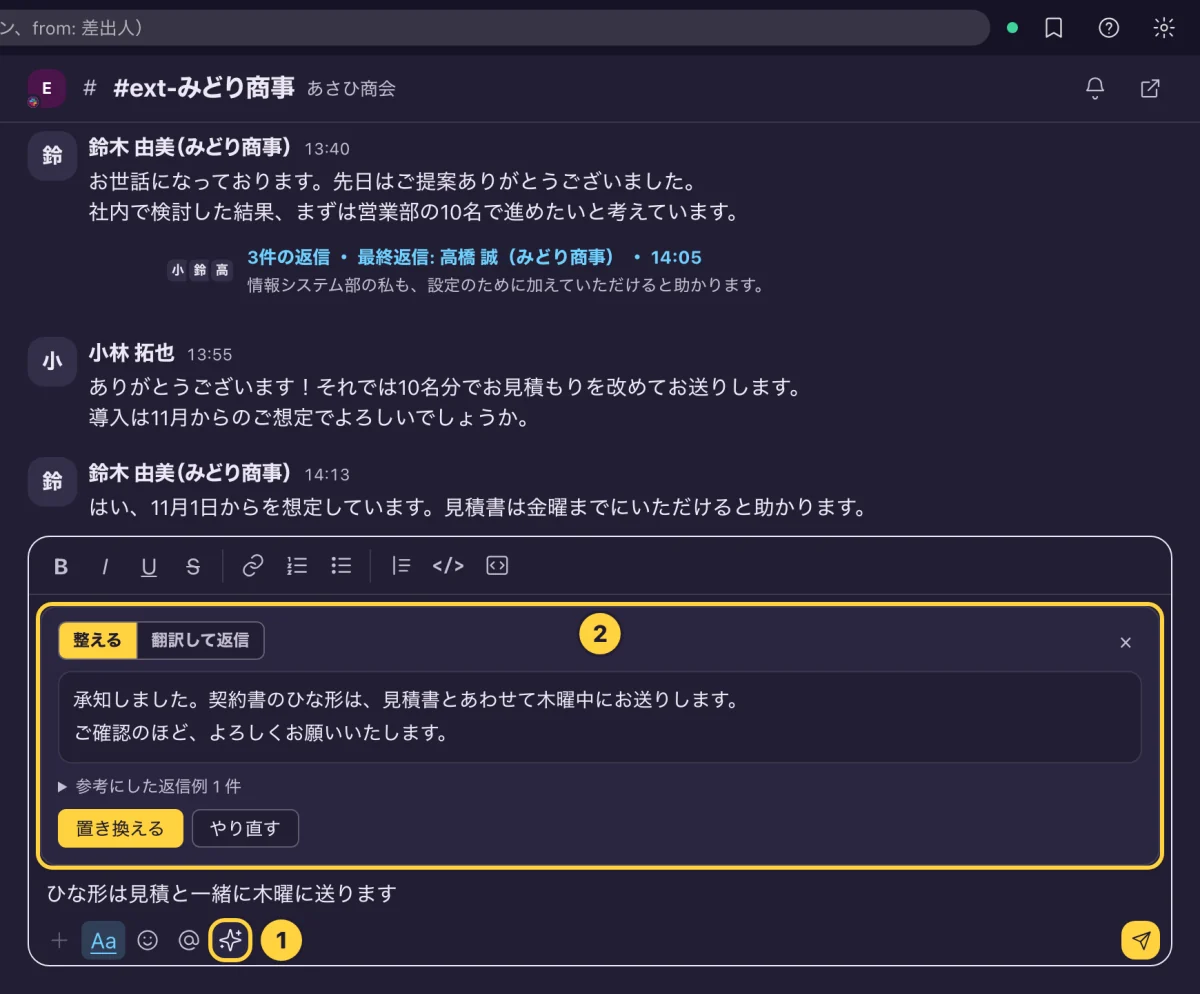
Check the content before you send it. AI text is never sent as it is.
Translate and reply
For someone who writes in another language, switch to "Translate and reply" and choose a language to turn your draft into text in their language. You can also check the meaning of the translated text in your own language.
Style memo and memos per conversation
The first time you use it, you are asked whether to create a "Style memo". If you choose "Create", the replies you have sent so far are sent to the provider to summarize how you write replies, and your drafts are then polished in wording that sounds like you. You can also choose "Use without creating".
A memo per conversation (your relationship with the other person and the matters in progress) is created the first time you use AI in that conversation. When the conversation moves on after the memo was created, "Update this conversation's memo" appears in the panel, and pressing it refreshes the memo. You can review both kinds of memo on the "AI" tab in Settings. If you rewrite and save one, that content is used (up to 4,000 characters for the style memo and 1,500 characters for a memo per conversation). Fix the style memo with "Save", "Recreate", and "Delete". For a memo per conversation, choose the conversation from the list and press "Save", "Recreate", or "Delete". To remove them all at once, use "Delete all". In conversations where you have sent fewer than 3 replies, no memo per conversation is created.
Past reply examples
When "Use past reply examples" on the "AI" tab in Settings is on (it is on at first), your past exchanges that are close to the current situation are given to AI as models. You can check the examples that were used under "reply examples used" in the panel. In Settings, "Recreate" collects the examples again and "Delete" removes them.
Judgment model
The judgment model is available on the AI plan. Both checkboxes are off by default.
- "Use the judgment model to rank and score reply examples, check suggestions, and review memos": When on, it is used to rank and score reply examples and to check reply suggestions.
- "Judge the priority of mentions": When on, you can sort "Mentions" in the list on the left by "Needs reply first". This one works even without an API key.
When you turn either on, you are asked to agree to content being sent to TypeSafe AI, Inc. in the United States.
What is sent
- With reply assist, your draft, the preceding posts in that conversation, the style memo and the memo for the conversation, and your past exchanges close to the current situation are sent to the provider you chose (Anthropic or OpenAI). They are not sent to ChatMansion's servers.
- Phone numbers and email addresses are masked before posts from the conversation are sent.
- Content is sent to TypeSafe AI, Inc. for the judgment model only when you have turned it on. ChatMansion does not store the content. Google Chat conversations are not sent, so the judgment model is not used with Google Chat.
For details, see How your chat content is handled.