
After you install ChatMansion, go through the following steps in order. If you haven't installed it yet, see Install and update.
1. Sign in
Start from "Sign in / Sign up" on the first screen. The steps are the same whether it is your first time or not.
- Start with email: Enter your "Email address" and press "Send verification code", then enter the 8-digit verification code you received by email and press "Sign in".
- Start with Google: Press "Continue with Google" and choose your Google account in the browser that opens.
The verification code is valid for 10 minutes. If the email doesn't arrive, check your spam folder and press "Resend code". The sender is auth@chatmansion.jp.
Signing in with Google does not connect Google Chat. You connect Google Chat later from Settings.
2. Agree to the terms
The agreement screen appears the first time and when the terms have been updated.
- Open and read the "Terms of Service", "Privacy Policy", and "Disclaimer".
- Once you have opened all 3, you can check "I agree to the Terms of Service, Privacy Policy, and Disclaimer".
- Check it and press "Agree and continue".
3. Register a card and start your free trial
First-time users get a free trial. Choose a plan and press "Try free for 7 days", and the billing screen opens in your browser. When registration is finished, you return to the app and it checks automatically.
- Billing for the plan you chose starts on the day the free trial ends.
- If you cancel during the free trial, you are not charged.
- The free trial can be used once per person.
Prices and the length of the free trial are in the price list, and the differences between plans are in Plans and what you can do.
4. Choose how diagnostic logs are sent
When you are asked "Send diagnostic logs automatically?", choose "Send automatically" or "Don't send automatically". A diagnostic log is a record for looking into problems, and it does not contain message text or other people's information. You can change this later in Settings. For details, see Send diagnostic logs.
5. Connect your first chat
If you haven't connected any chat when you first open the app, a short video (30 seconds) on how to connect plays. Press "Connect a chat" to open the "Accounts" tab in Settings. Sign in from the section for the service you use.
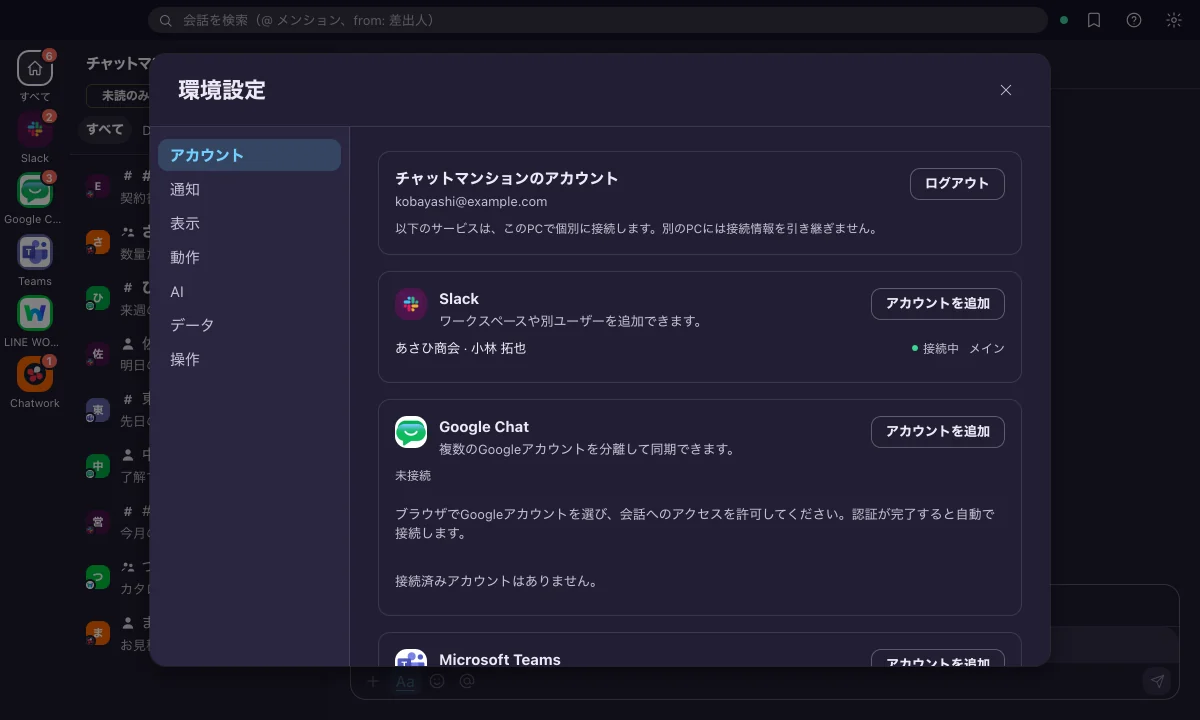
The steps for each service are in Connect a chat. You can watch the video again at any time with "Help" → "Connection Tutorial" in the menu.