
Show only unread conversations
Press "Unread only" above the conversation list to list only conversations with unread messages. You can also switch it with ⌘⇧U (Ctrl+Shift+U on Windows). Conversations with unread messages only inside threads, and muted conversations, are shown too.
Mark a conversation you've read as unread
The following conversations can be marked as unread again after you have read them. They also become unread in the service itself.
- Slack DMs, group DMs, and channels
- Google Chat DMs and spaces
- Microsoft Teams chats (one-on-one and group)
- Chatwork chats
There are 3 ways to do it.
- Right-click a row in the conversation list and choose "Mark as unread": The conversation becomes unread from the other person's latest post.
- Press the envelope mark (Mark as unread) in the header at the top of the conversation: The open conversation becomes unread from the other person's latest post.
- Hover over a post and choose "Mark unread from here" from "More" (…): Everything from that post on becomes unread. It is available on other people's posts. It doesn't appear on thread replies.
When you mark the open conversation as unread, it stays unread until you move to another conversation or press that conversation again. In a conversation that still has unread messages, "Mark as unread" in the list and the mark in the header don't appear.
Show conversations where you are mentioned
Press "Mentions" to list only conversations with mentions of you (including mentions of everyone that include you). You can also switch it with ⌘⇧M (Ctrl+Shift+M on Windows). Mentions you have already read are shown too. Use it together with "Unread only" to show only conversations that have both mentions and unread messages.
Move around inside a conversation
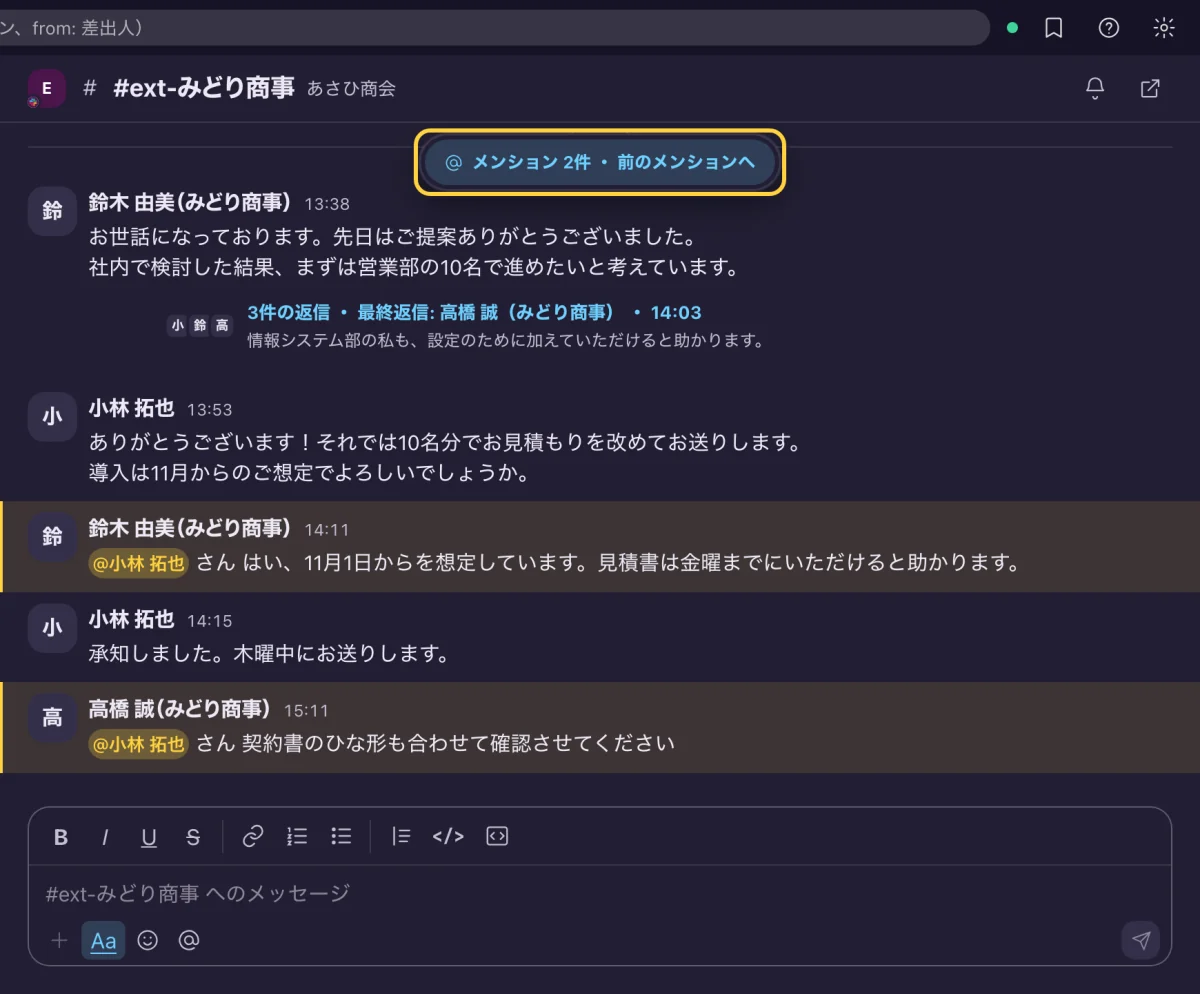
When you open a conversation, the following buttons appear at the top.
- "N unread · Go to first unread": Takes you to the first unread message. Press again for "Next unread".
- "Go to N unread threads": Takes you to a thread with unread replies.
- "N mentions · Previous mention": Takes you to a mention of you. There is also "Next mention". For older mentions that haven't been loaded, "Find earlier mentions" goes back through older history to look for them.
You can close the unread button with × (Esc also closes it). When you are reading higher up, the "Latest" button at the bottom right takes you back to the very bottom. You can do the same from "Conversation" → "Jump to Unread", "Previous Mention", "Next Mention", and "Jump to Latest" in the menu.
Sort by which need a reply first (AI plan)
While "Mentions" is selected, you can choose the order from "Newest first" and "Needs reply first". With "Needs reply first", AI reads your mentions from the last 14 days and puts the ones that need a reply at the top.
- Rows are marked with labels such as "Needs reply" and "Urgent".
- Mentions judged not to need a reply and ones you have already replied to are grouped at the bottom.
- From "…" on a row or by right-clicking, you can choose "Mark as replied" or "Mark as no reply needed". To have it judged again, choose "Back to automatic judgment".
To use it, be on the AI plan and turn on "Judge the priority of mentions" on the "AI" tab in Settings (Polish your replies with AI). On Standard, "Needs reply first" is grayed out, and pressing it shows information about the AI plan.
When messages are marked as read
A conversation is marked as read when you open it and scroll close to the very bottom while the ChatMansion window is in front. It isn't marked as read while the window is behind other windows or while you are reading higher up.
Whether the other person has read it
In Messenger, Instagram, DingTalk, and Lark, your posts show "Read" (DMs) or "Read by N" (groups). When it can't be confirmed yet, they show "Unread".
Whether the read status reaches the service
When you open a conversation, in most services it is marked as read on the service side as well. In the following cases, however, it is marked as read only inside ChatMansion.
- Replies in threads in Slack channels
- Inside Google Chat threads
- Inside DingTalk threads
- Teams channels (including replies)