
Sending
Open a conversation, write in the message box at the bottom, and press Enter. Use Shift+Enter for a line break. An Enter that confirms text conversion in an input method (such as Japanese input) doesn't send the message.
If you want Enter to make a line break, turn off "Send with Enter" on the "Behavior" tab in Settings. When it is off, send with ⌘Enter (Ctrl+Enter on Windows).
Replying in a thread
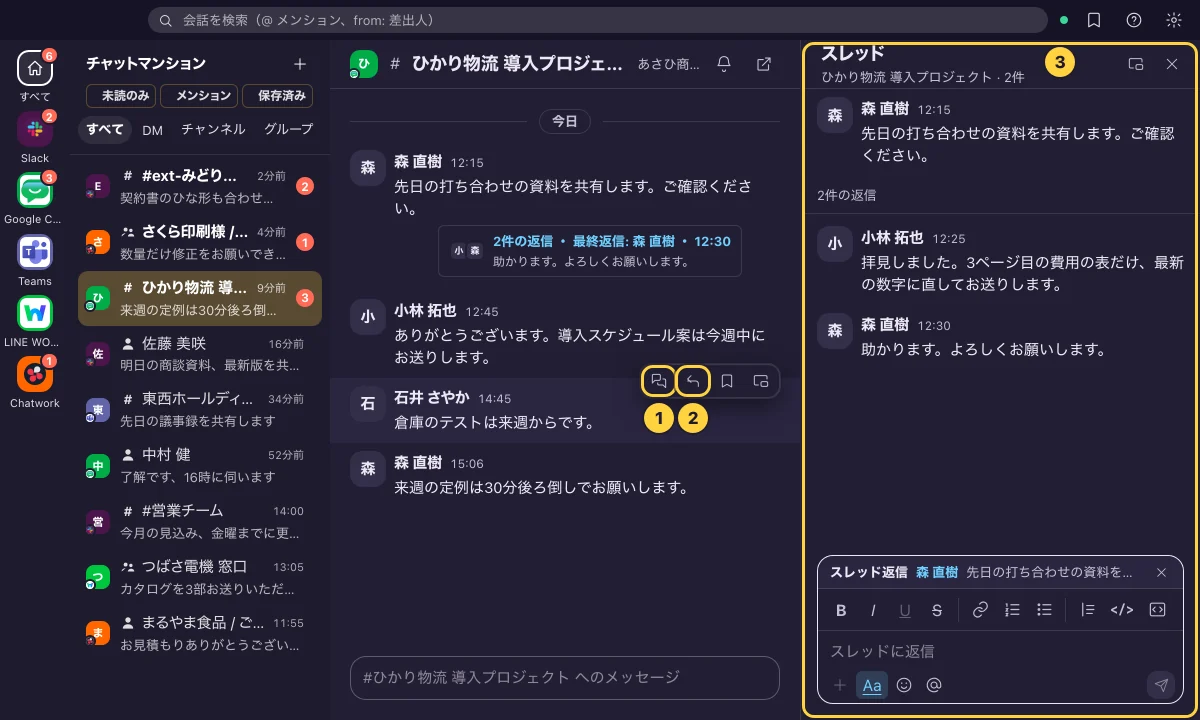
Hover over a post and click the "Thread" button to open the thread in the right column. What you write in the message box below is sent as a reply to that thread.
In Slack, check "Also send to" in the thread's message box to show your reply in the channel as well.
Threads are available in Slack, Google Chat (spaces with threads), and Teams (channels).
Replying with a quote
Hover over a post and click the "Reply" button, and "Quote reply" and the original post appear above the message box. Write and send as usual, and your reply quotes the original post. To cancel, click the ×.
If you quote a post inside a thread, the reply is sent to the same thread (Slack and Google Chat).
In Teams chats, you can quote up to 10 posts in one reply. If you click "Reply" on another post while quoting, that quote is added. To remove them one at a time, click the × on that row; to cancel them all, click the × next to "… quote replies".
You can't reply with a quote in Messenger or Instagram. For Teams, it is available only in chats; for DingTalk, for posts that are not part of a thread, in conversations other than topic conversations. A quote and a file attachment can't be sent together.
Adding a mention
Type "@" or click the "@" button in the message box to see suggestions. Choose with ↑↓ and insert with Enter or Tab.
To notify everyone in the conversation, type "everyone", "all", "channel", or similar, and "Everyone in this conversation" appears in the suggestions. Mentioning everyone is available in conversations, such as groups and channels, where the service supports notifying everyone.
In Teams channels, the mention for everyone appears in the suggestions under the channel's name (typing "channel" also brings it up). Type the team's name or "team", and the team's name appears in the suggestions. Choose it to mention and notify everyone in that team.
Applying formatting
With the formatting buttons above the message box (use "Aa" to hide or show them), you can apply bold, italic, underline, strikethrough, links, numbered lists, bulleted lists, quotes, and code. You can also apply them with keys. In Teams conversations, "More formatting" also lets you use headings, text color, tables, and more (Using the message box).
| Formatting | Mac | Windows |
|---|---|---|
| Bold | ⌘B | Ctrl+B |
| Italic | ⌘I | Ctrl+I |
| Underline | ⌘U | Ctrl+U |
| Strikethrough | ⌘⇧X | Ctrl+Shift+X |
| Link | ⌘K | Ctrl+K |
The formatting you can use differs by service. Buttons for formatting that can't be used are disabled. You can't apply formatting in DingTalk or LINE WORKS.
A line break inside a bulleted list starts the next item, and another line break on an empty item leaves the list.