
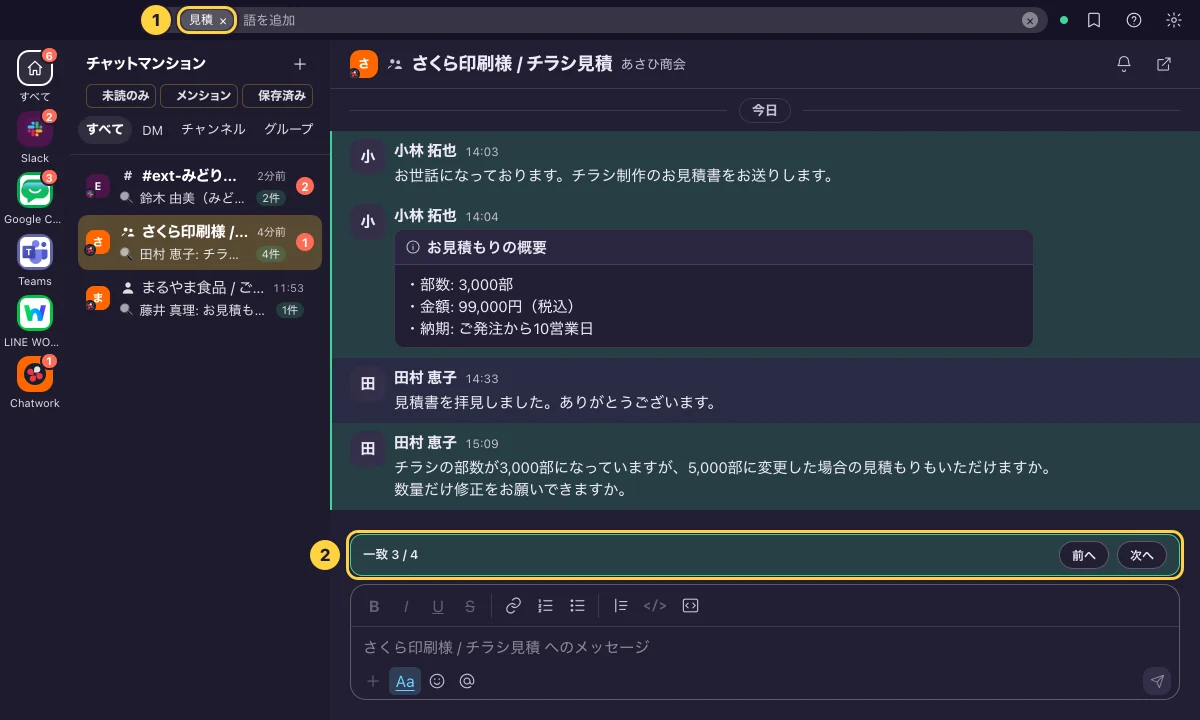
With the search box in the top bar, you can search the conversations and posts of all your connected services at once. Press ⌘F (Ctrl+F on Windows) to move to the search box.
Search by words
When you type words, the search looks in conversation names and in the text of posts, attachment names, and sender names. Type several words separated by spaces to narrow the results to those that contain all of them. The conversation list shows an excerpt of the matching post and the number of matches.
Posts whose translation has been shown by automatic translation can also be found by the translated text.
Filter by sender or mention
| What to type | What it finds |
|---|---|
from:name | Posts written by that person |
@name | Posts that mention that person in the text |
As you start typing a name, suggestions of people appear. Press Enter to choose one, and the filter stays in the search box as a "chip". Press the text of the chip to switch between "Sender" and "Mention". Remove it with the × on the chip.
Example: Type from:Alex quote to find posts written by Alex that contain "quote".
Filter by service
When you have two or more services connected, press the empty search box and service buttons appear under "Filter by service". Only the services you press are searched. When a service is selected in the rail on the left, the search is limited to that service from the start.
Move between matches inside a conversation
If you open a conversation while a search is active, you are taken to the matching post, and "Match n / m" with "Previous" and "Next" appears above the message box. Older posts that aren't on this computer are searched while loading further back.
Find old posts in Teams
When Teams is connected, searching by words shows "Search more in Teams" below the conversation list. Press it to search on the Teams side as well, which also finds old posts that haven't been loaded onto your computer. The results list the sender, date and time, conversation, and part of the post.
- Press a result to go to that post if the conversation is in the app. Conversations that aren't in the app, and old posts that can't be reached by going back, open in Teams.
- Up to 25 results are shown at a time. If you see "there are more matches", add words to narrow them down.
- It works only for searches by words. It doesn't appear while there is a sender or mention chip, or when there is no word of 2 or more characters.
- If you see "Couldn't search in Teams.", press "Search again in Teams".
Recent searches and clearing
Press the empty search box to see your recent searches (clear them with "Clear history"). Press the × in the search box or Esc to clear all filters (when people suggestions or recent searches are showing, the first Esc closes them).
If you can't find something
- The search covers posts that have been loaded onto your computer. Old posts may not be found.
- Search for posts older than that in the service itself. For Teams, you can use "Search more in Teams".