
Messages in other languages can be automatically translated into the language you choose and shown that way. This is available on every plan.
Getting started
- Open the "Appearance" tab in Settings.
- Under "Automatic translation", choose the language you want to read in (for example, "English") in "Language to translate into". The default is "Don't translate".
- Choose how translations are shown: "Show both original and translation" (the default) or "Show only the translation". Even when only the translation is shown, you can see the original with "Show original". You can't choose how translations are shown until you choose a language.
Only messages in a language different from the one you chose are translated. The languages you can choose are Japanese, English, Chinese (Simplified and Traditional), Korean, Vietnamese, Thai, Indonesian, Filipino, Nepali, Burmese, Khmer, Spanish, French, German, Portuguese, and Russian. Most languages appear in the list in their own script ("English", "한국어", and so on).
To stop translation in all conversations, set "Language to translate into" back to "Don't translate".
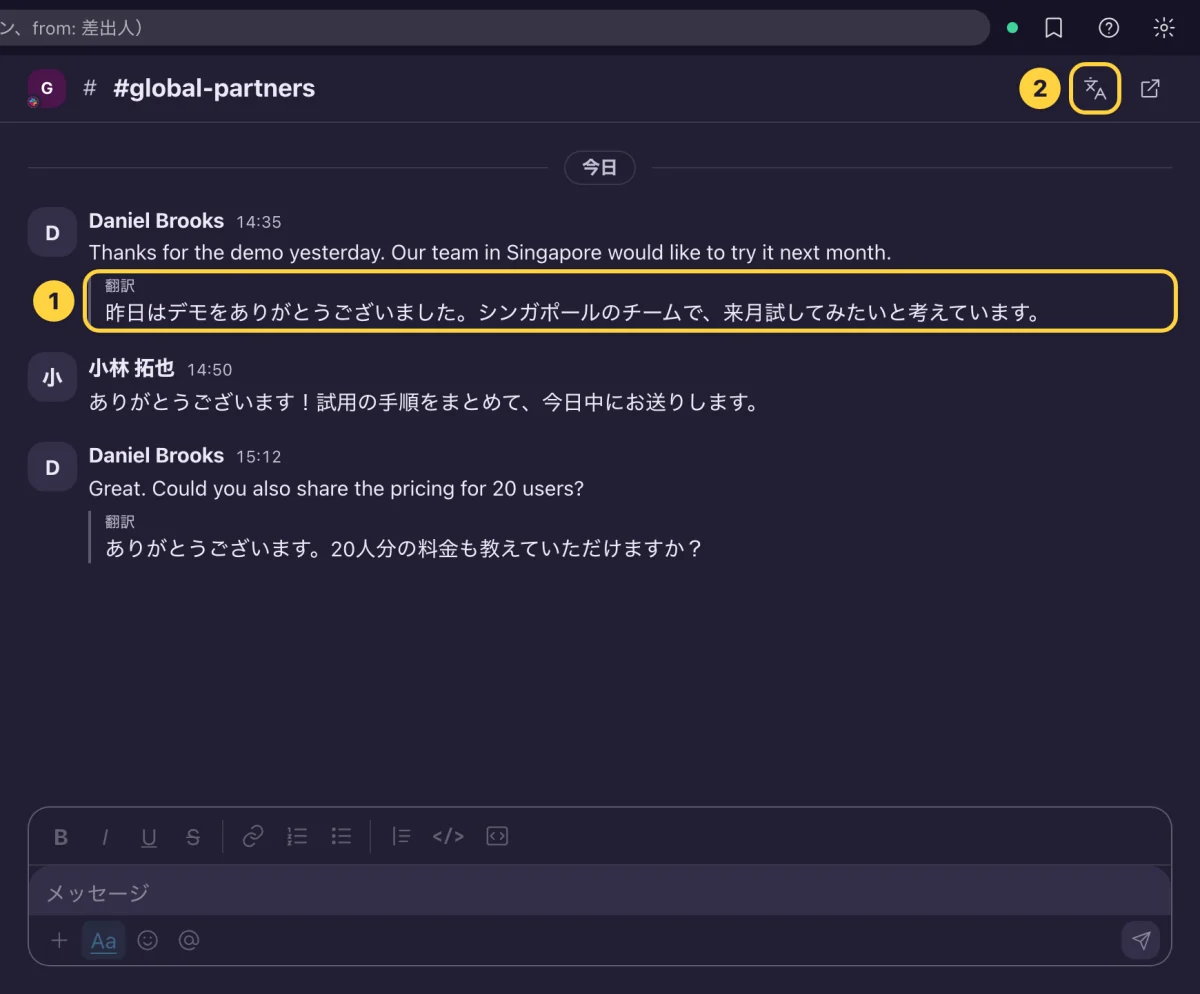
Stop it for a single conversation
For a conversation that doesn't need translation, you can stop it with the button at the top of the conversation ("Don't translate this conversation"). You can also switch it from "Conversation" → "Translate This Conversation" in the menu.
What isn't translated
- Your own posts
- The text of desktop notifications
- Posts with only attachments, and posts with only mentions or URLs
- Very long text
You can also search for posts by their translated text. The part of the last post shown in the conversation list is translated as well.
Translate only selected text
Select text in a post, right-click, and choose a language from "Translate" to translate just that part. You can "Copy" the result. Do the same in the message box and you can use "Translate and Replace" to replace what you wrote with its translation.
Translation limit
There is a monthly limit on how much can be translated. When you reach it, you see "This month's translation volume has reached the limit for this computer" and translation stops until the next month.
When translation has stopped for a while, you see "Translation is paused (resumes at …)". It resumes at that time.
Where the text is sent
Text to be translated is sent to Microsoft's translation service to be translated. ChatMansion doesn't store the text. Names and contact details written in the text are sent as they are. If you don't use translation, the text isn't sent anywhere outside. For details, see How your chat content is handled.