
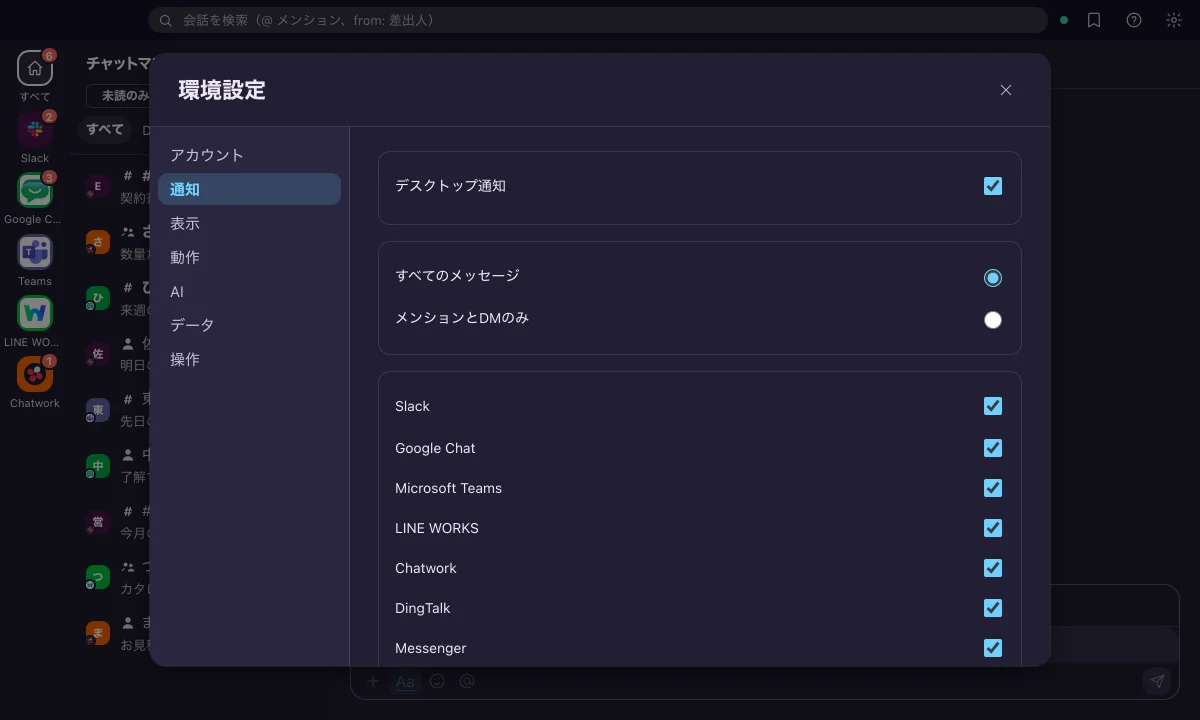
Notification settings are gathered on the "Notifications" tab in Settings. You can also change the main settings from "Notifications" in the menu (What you can do from the menus).
What to notify
- "Desktop notifications": When off, no notifications are shown at all. The default is on.
- "What to notify": Choose "All messages" or "Mentions and DMs only". The default is "All messages".
- "Notifications by service": You can turn notifications on or off for each service. By default, all are on.
- "Show message preview": When off, the notification says only "New message". This is useful when you work where other people can see your screen. The default is on.
When you click a notification, ChatMansion comes to the front and that conversation opens (for a reply in a thread, that thread).
No notification is sent in the following cases.
- Your own posts
- When you are looking at the ChatMansion window and have that conversation open
- Earlier posts loaded all at once when the connection comes back after a while
Notification sound
Turn on "Play a notification sound" to hear a sound when something new arrives. The default is on. While it is off, the sound and volume fields can't be used.
- "Sound": Choose from seven sounds, "Ding-dong", "Ding", "Chime", "Beep-beep", "Pop", "Blip", and "Plop", or "macOS default" ("Windows default" on Windows). The default is "Ding-dong". The sound plays as soon as you choose it. You can also check it with the preview button next to it (the OS default sound can't be previewed).
- "Volume": Move the slider left or right to change it. When you finish moving it, the sound plays at that volume. The default is a little quiet (80% of the way to the right end). The volume affects only ChatMansion's sounds; the OS default sound plays at the OS volume.
- "Change per service": Open this to choose a different sound for each service. "Same as overall" means the sound chosen in "Sound" above.
Pausing for a while (Do Not Disturb)
During a meeting, for example, you can pause notifications with "30 minutes", "1 hour", or "Rest of today" under "Do Not Disturb". "Rest of today" lasts until 23:59 that day. While paused, "Notifications paused until …" is shown here. "Turn off" brings them back. You can do the same from "Notifications" → "Pause" in the menu and from "Do Not Disturb" in the menu of the menu bar icon (the notification area on Windows).
To pause at the same time every day, turn on "Pause during set hours" and choose "Start" and "End". The default is off, with the times set to 22:00–08:00. You can set hours that cross midnight, such as from night until morning. If the start and end are the same time, notifications are not paused.
If you turn on "Match Teams and Slack status to Do Not Disturb", Teams is set to "Do not disturb" and Slack to "Pause notifications" during Do Not Disturb, and both are restored when it ends. The default is off. For Teams, this works only when you use "Presence" (Connect Microsoft Teams). If, during Do Not Disturb, you choose a different presence in Teams or change Slack's notification pause yourself, it is not matched again for the rest of that Do Not Disturb period and is not restored when it ends. For how to change your own presence, see Change your presence and status.
Keyword notifications
Even with "Mentions and DMs only", you can be notified of messages that contain words you choose.
- Type a word in the "Keyword notifications" field (up to 32 characters each).
- Click "Add" or press Enter.
You can register up to 20. The same word is not registered twice. To remove one, click the × next to the word.
- Uppercase and lowercase, and full-width and half-width characters, are not distinguished. You are notified if the word appears anywhere in the message text. For posts in Teams channels, the subject is checked too.
- Posts in muted conversations, during Do Not Disturb, or from a service turned off under "Notifications by service" are not notified even if they contain a keyword.
Adding other spellings of your name or the names of projects you are responsible for helps you avoid missing things.
Muting a conversation
For conversations you don't need notifications from, you can stop them with the bell button above the conversation ("Mute this conversation"). "Conversation" → "Mute Notifications" in the menu does the same. A muted conversation doesn't notify you even when you are mentioned. It is also not counted in the unread number in the rail. The list of muted conversations, and unmuting, are under "Muted conversations" on the "Notifications" tab.
Receiving notifications with the window closed
To keep receiving notifications while the window is closed, turn on "Stay in the menu bar when the window is closed" on the "Behavior" tab in Settings. While it is on, notifications arrive until you quit completely. For details, see Launch at startup and staying in the menu bar.
If notifications don't appear, see Notifications don't arrive.