
Your sign-in to each service can expire because of a password change, being revoked on the service side, reaching its time limit, and so on. While it is expired, new messages from that service don't arrive.
How to fix it
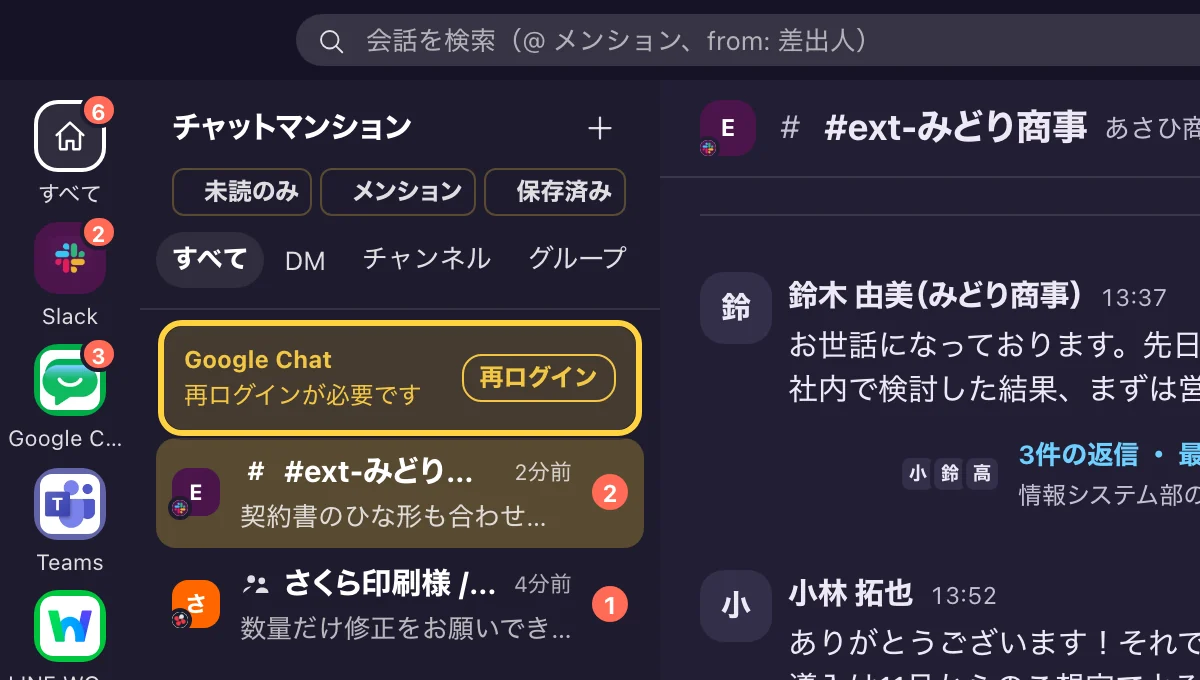
- If "… Sign-in required again" appears above the conversation list, click "Sign in again". That service's section in Settings opens and the sign-in starts.
- Sign in with the same account, following the same steps as when you connected.
- When you finish, syncing for that service starts again and the notice disappears.
Even if no notice appears above the conversation list, if the account's row on the "Accounts" tab in Settings shows "Failed", click "Sign in again" in that row. For DingTalk, no notice appears above the conversation list, so check here.
When you sign in again with the same account, the current connection is replaced by the new one. The conversations you have loaded and your settings are kept.
How sign-ins expire in each service
| Service | Common ways it expires |
|---|---|
| Chatwork | You need to sign in again every 14 days |
| Google Chat and Teams | Expires when the password is changed or when your organization's administrator revokes it |
| Messenger and Instagram | Expires when you sign out on the Facebook or Instagram side, or when you are asked to verify your identity |
| LINE WORKS | If you sign in with a different account, "You are signed in with a different LINE WORKS account" is shown |
When you see "Couldn't connect to the … sign-in server" or "temporarily not responding", your sign-in has not expired; it is a temporary problem with the network or on the service side. Wait a little and it reconnects automatically.
Adding permissions
Some features, such as creating new conversations and Chatwork tasks, need additional permissions. When a permission is missing, a notice appears: "click “Sign in again” and add the permission (…)". For Teams, add it by clicking "Use" under "Additional features" in the Teams section of Settings, without signing in again (Connect Microsoft Teams).
- On the "Accounts" tab in Settings, click "Add account" for that service ("Connect" for Chatwork).
- Sign in with the same account and allow all the permissions on the consent screen.
The current connection is replaced by one with the added permissions.
If this doesn't fix it, send a diagnostic log and then Contact us.