
From left to right, the ChatMansion screen is made up of the following parts.
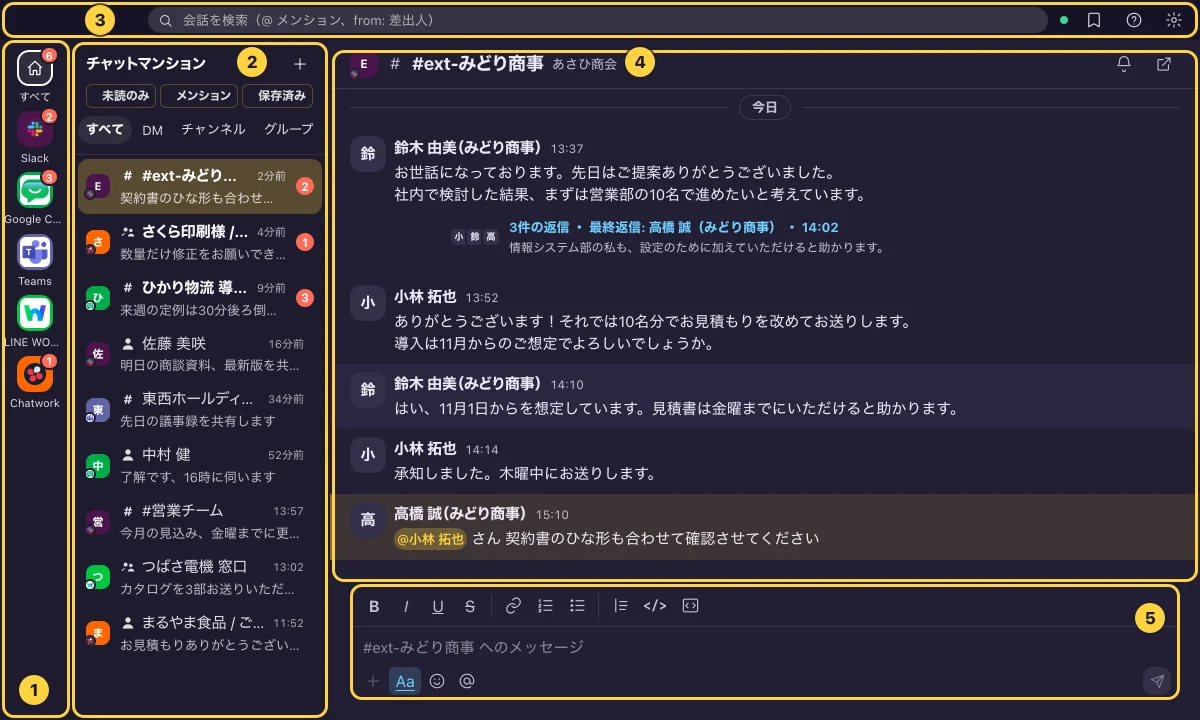
Rail (far left)
The icons of the services you have connected are lined up vertically.
- "All": Shows the conversations of all services together.
- Each service icon: Shows only that service's conversations. The number at the top right is the unread count (muted conversations are not counted).
- You can reorder the icons by dragging them, or by selecting an icon and pressing Shift+↑↓.
When you have connected two or more accounts of the same service, a column of accounts appears to the right of the rail so you can filter by account.
Conversation list
The conversations of the selected service are listed newest first.
- "Unread only": Shows only conversations with unread messages.
- "Mentions": Shows only conversations where you are mentioned.
- "Saved": Opens the list of saved posts (Save posts and come back to them).
- "All", "DM", "Channels", "Groups": Filter by conversation type.
- "+": Creates a new conversation.
- When Teams is selected, the names of the sections you created in Teams may appear below the conversation type buttons (Connect Microsoft Teams).
- When a Teams meeting is coming up, "Starts at" (or "In progress" once it has started) and the meeting name appear at the top of the list. Press "Join" to enter the meeting.
Each row shows the conversation name, and the time and part of the last post. It also shows the account name when you have connected two or more accounts of the same service, a "Muted" mark on muted conversations, and the number of matches while you are searching.
- The dot at the bottom right of a one-on-one conversation's icon: The other person's status in Teams and Slack (Connect Microsoft Teams, Connect Slack).
- "External": A Teams conversation that includes people outside your organization.
- "Show N hidden conversations": Appears at the bottom of the list when you have hidden Teams chats (What you can do with a right-click).
Top bar
- Search box: Finds conversations and posts (Search posts).
- Round mark: The connection status. Hover over it to see a message such as "Synced".
- Person-shaped button ("My status"): Changes your presence (such as "Available" or "Busy" in Teams, or "Automatic" or "Away" in Slack) and your status. The color of the dot is your current presence. It appears when you use Teams presence or have Slack connected (Change your presence and status).
- The Saved, Help (?), and Settings buttons (Using Help, List of settings).
- The speech bubble button between Saved and Help (?) ("Send feedback"): Sends a problem report or a request (Contact us).
Conversation view
When you select a conversation, its messages appear in the middle.
- Top row: The conversation name, the number of members, mute, the translation toggle, and the "Open in the service" button. Conversations that support it also show "Mark as unread", and Teams meeting chats show "Join meeting" (camera-shaped). Press the conversation name or the number of members to rename the conversation or add members (Rename a conversation or add members). Chatwork conversations also show the "Overview and tasks" button (Chatwork overview and tasks).
- Mentions of you are highlighted in yellow.
- Pinned posts (Teams chats) and LINE WORKS announcements appear at the top of the conversation. Press one to go to that post. Remove a pin with "Unpin" and an announcement with "Remove".
- When there are unread messages, buttons such as "N unread · Go to first unread" appear at the top (Check unread messages and mentions).
- Hover over a post to see buttons for reactions, reply, save, mini window, and more (Open a post or thread in a mini window).
- Press a sender's name or icon to see their profile (Open a DM, huddle, or call from someone's name).
What you see inside a conversation
- "Unread from here": Everything below this line is unread.
- "Load earlier messages": Press it when you are at the very top to load older posts.
- "Show more", "Collapse": Long posts are shown only partway.
- "N replies · Last reply: name · time": Replies in a thread. Press it to open the thread. A thread whose original post isn't on this computer is shown as "Thread whose original message hasn't been loaded".
- Quote box: Press it to go to the original post that was quoted.
- Reactions: Hover over one to see the names of the people who added it.
- "This message was deleted": A deleted post (in Slack, a post with no replies disappears entirely).
- "Only visible to you": A Slack notice that only you can see.
- "Read", "Read by N": In Messenger, Instagram, DingTalk, and Lark, whether the other person has read your post.
- Date dividers: Posts are divided by "Today", "Yesterday", or the date and day of the week.
Message box
Write your message at the very bottom.
- "+": Attaches a file.
- "Aa": Shows or hides the formatting buttons (bold, bulleted list, and so on).
- The emoji and mention (@) buttons.
- Press Enter to send and Shift+Enter for a new line (you can change this on the "Behavior" tab in Settings).
Threads and the right column
When you open a thread, the list of replies appears in the right column. Chatwork's "Overview and tasks" (Chatwork overview and tasks) and "Saved" (Save posts and come back to them) also appear in the same column, so only one of them is open at a time.
For how to reply, see Reply.